
1 What is the EqualWeb Monitor Report?
Your EqualWeb Monitor Report is an automated scan of your website that helps identify accessibility barriers that may affect how people with disabilities use your site.
You receive this report so you can see where your website stands, understand what has been found, and decide what to work on next. It is designed to give you a clear picture without requiring you to be a technical expert.
2 What the report is for
The Monitor Report helps you:
- Identify accessibility findings on your website, based on widely recognised accessibility standards.
- Understand what still needs attention. These are findings that may require a manual fix by your team.
- See what has been addressed automatically (optional. This information appears only when the scan includes data about fixes applied through the EqualWeb accessibility widget; it may not appear in every report).
Think of it as a health check for your website's accessibility. It is not a verdict, but a starting point for improvement.
3 Reading the summary section
The top of the report gives you a high-level overview. Here is what the common summary elements mean: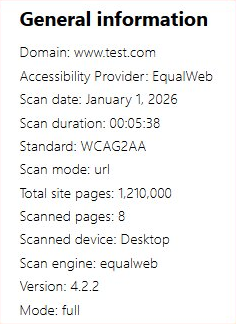
General information
The General information section appears near the top of the report and provides basic context about the scan. It typically includes details such as:
- Domain: The website address that was scanned (for example,
https://www.test.com). - Accessibility provider: The organisation or tool that ran the scan.
- Scan date: When the scan was performed.
- Scan duration: How long the scan took to complete.
- Accessibility standard: The standard used for the scan, such as WCAG 2.1 AA or another applicable standard.
- Scan mode: Whether the scan ran automatically or with specific settings.
- Total site pages / Scanned pages: The total number of pages on the site versus how many were actually checked in this scan.
- Scanned device: The device type used to simulate the scan, such as desktop or mobile.
- Scan engine and version: Technical details about the scanning tool used.
These details help you understand what was checked and under which settings. If you are unsure whether the scan covered the most important pages of your website, you can contact EqualWeb for guidance.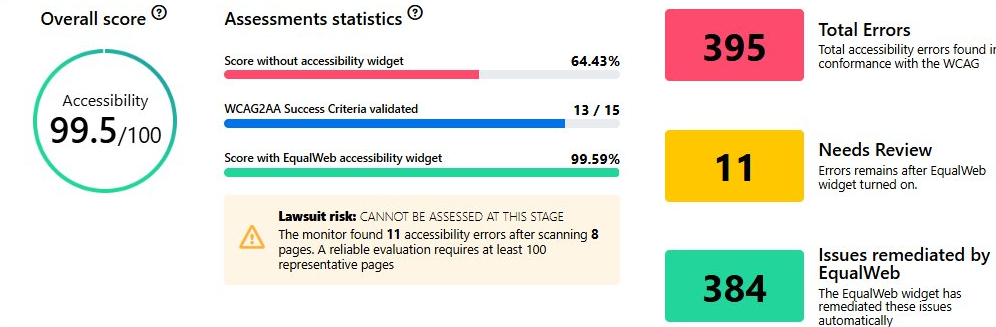
Summary items
4 How to work with the report effectively
Once you understand the summary, the next step is to look at the detailed results and decide what to act on. The results area lets you explore the same findings from two different angles, and it gives you a simple way to focus on what still needs attention.
Two ways to view the results
Near the top of the results area you will find two tabs. They show the same findings, just organised from a different perspective:
- Errors by standard guidelines. This groups the findings by the accessibility rule or criterion they relate to, such as a specific WCAG checkpoint. Use this view when you want to understand which accessibility requirements were not met.
- Errors by pages. This groups the findings by page address. Use this view when you want to understand what needs attention on a specific page of your site.
Both views contain the same type of information. Choosing between them is simply a matter of whether you prefer to think in terms of accessibility rules or in terms of individual pages.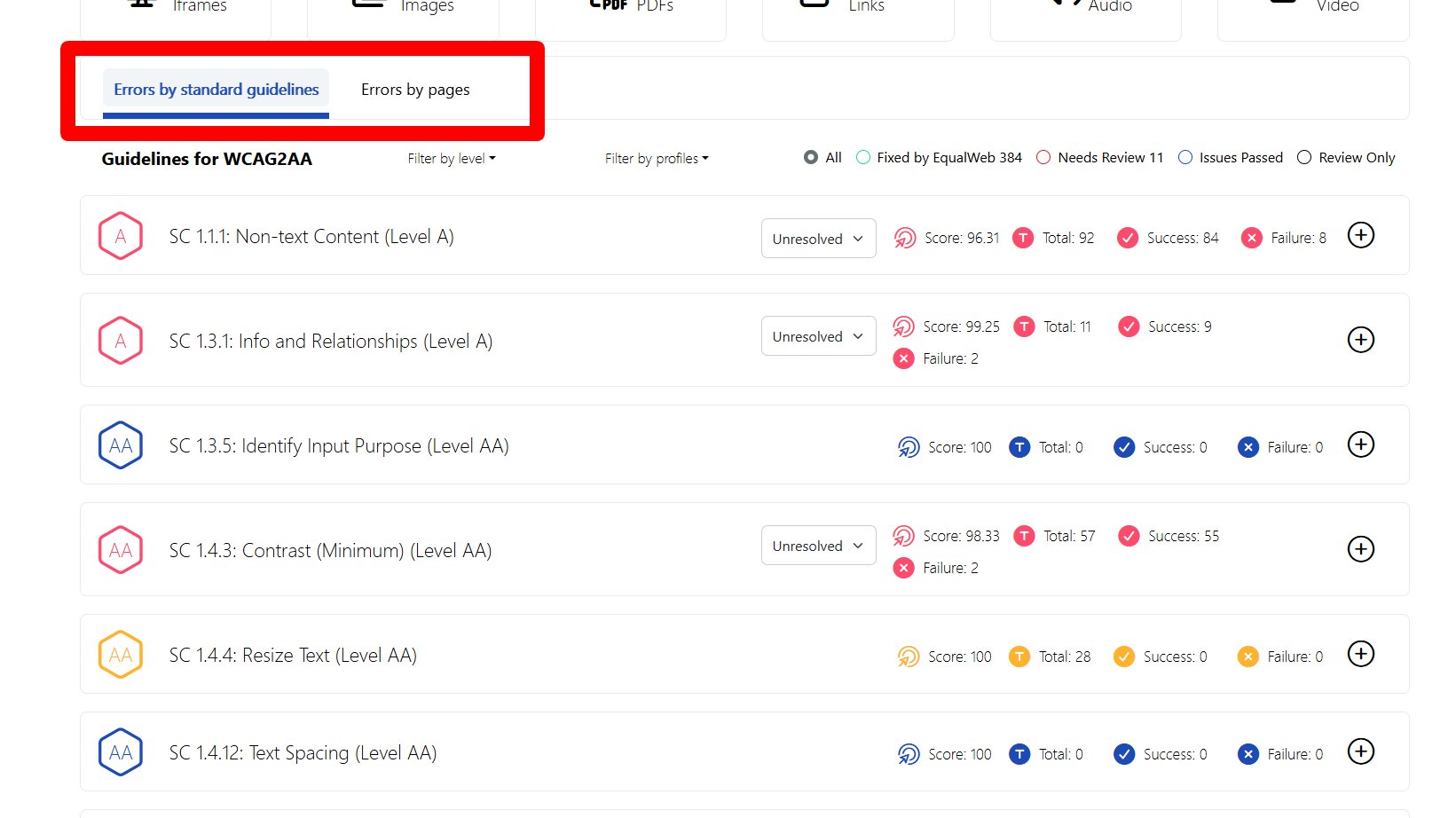
Start with the "Needs Review" filter
The results area includes a set of filter options. The most useful one to begin with is Needs Review. Selecting it hides items that have already been fixed automatically or that already passed, and shows you only the findings that may still need attention from your team.
This is usually the best place to start, because it lets you concentrate on the remaining items that are most likely to need a manual decision or a fix, without being distracted by everything that is already handled.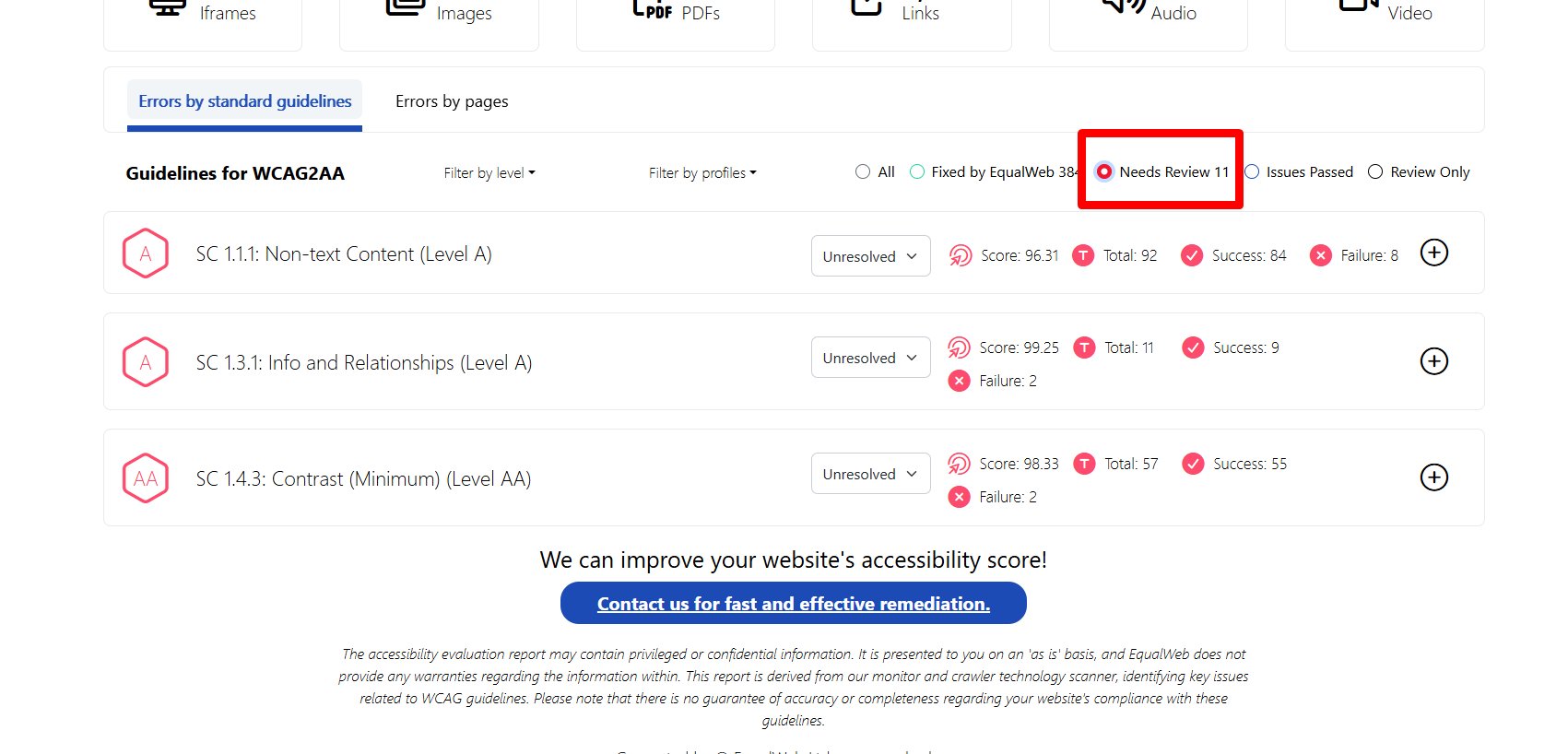
A simple workflow for reviewing findings
Here is a practical order you can follow to work through the report:
- Scroll down to the results area of the report.
- Choose the view that is most useful for you. Use Errors by standard guidelines to review issues by accessibility rule or criterion, or use Errors by pages to review issues by page.
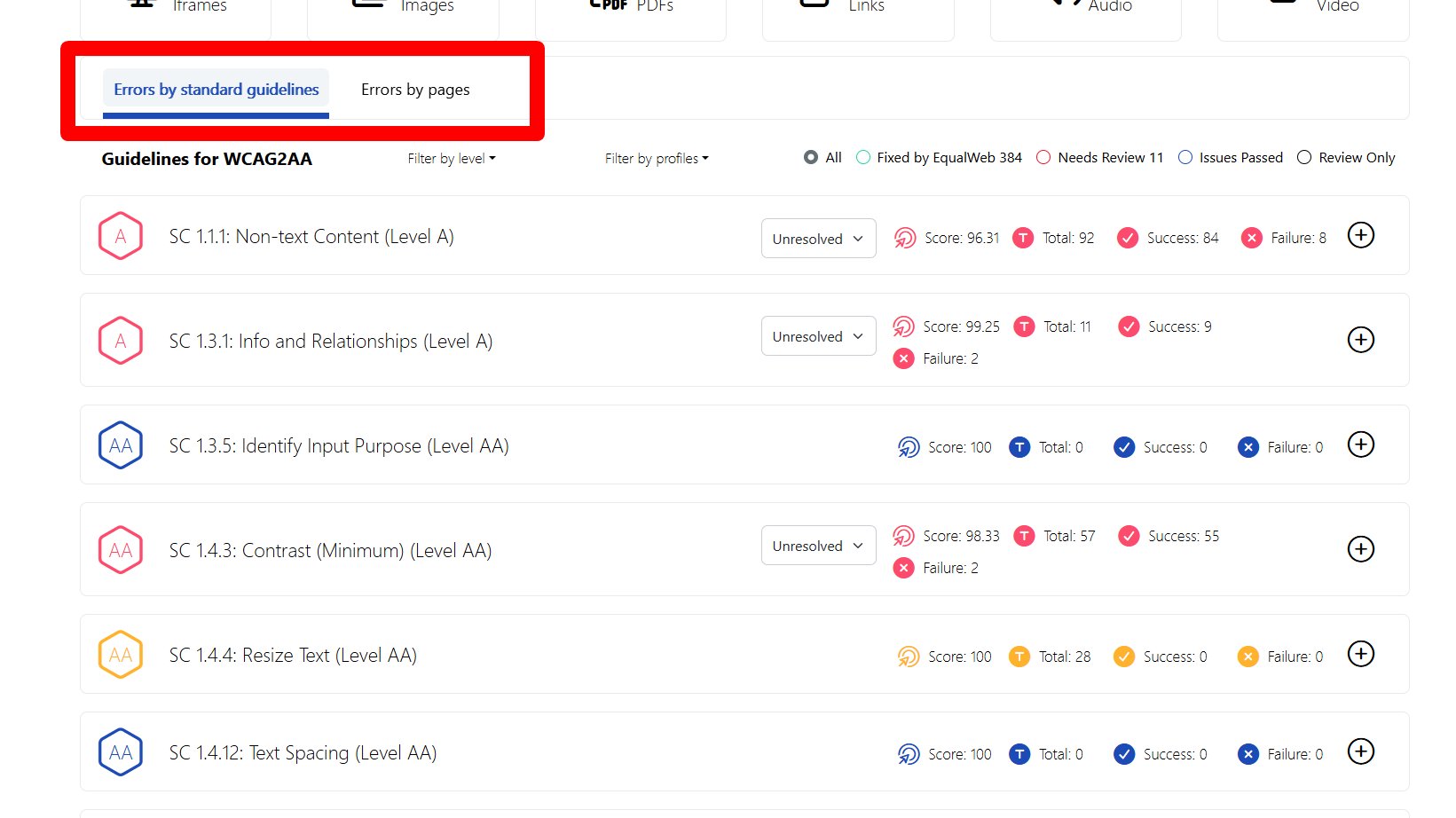
Step 2: choose a view using the two tabs at the top of the results area. - Select the Needs Review filter to show only the findings that still need review or manual action.
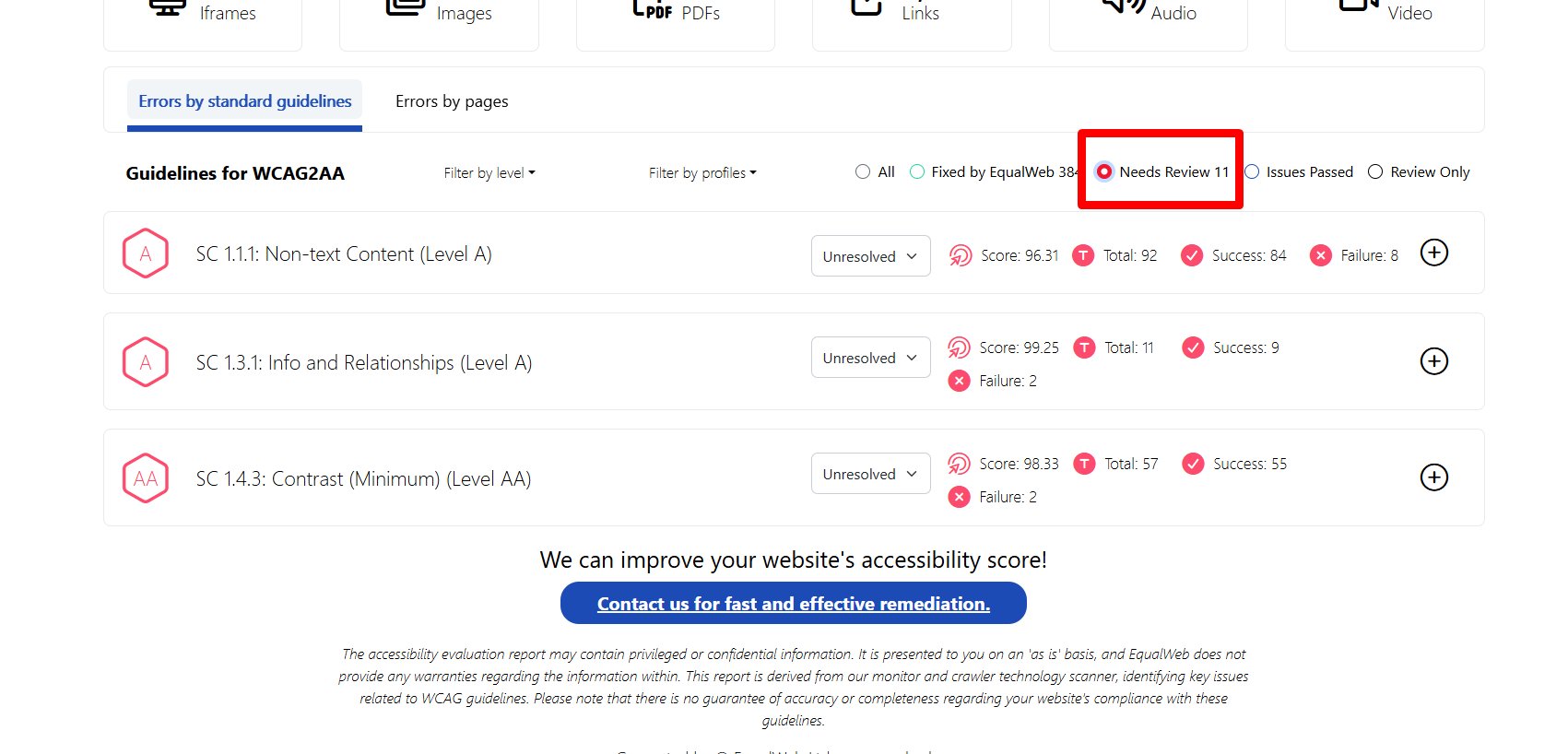
Step 3: select the Needs Review filter. Counts shown are examples only. - Open or expand a finding, criterion, or row to see more details.
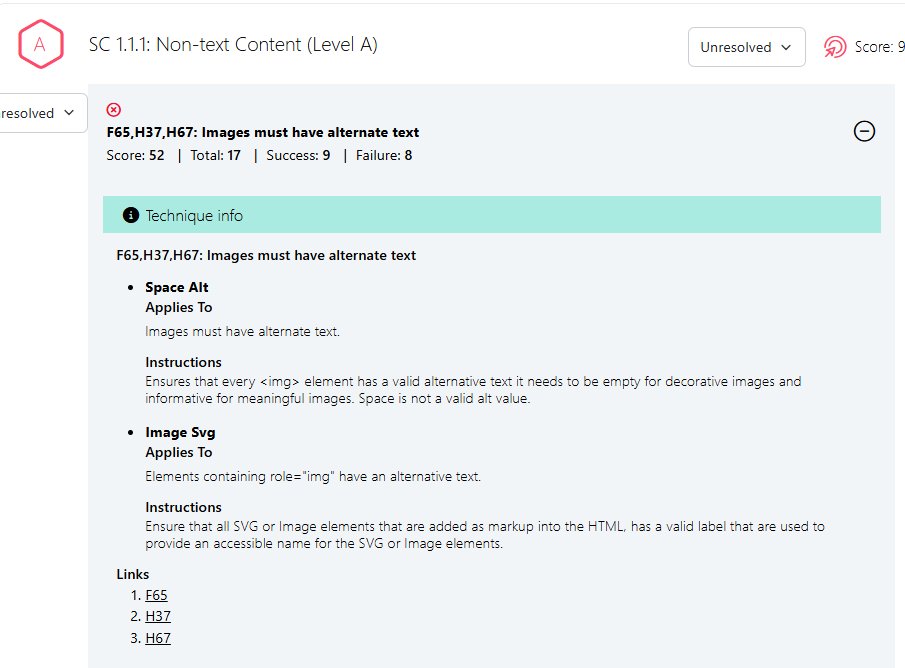
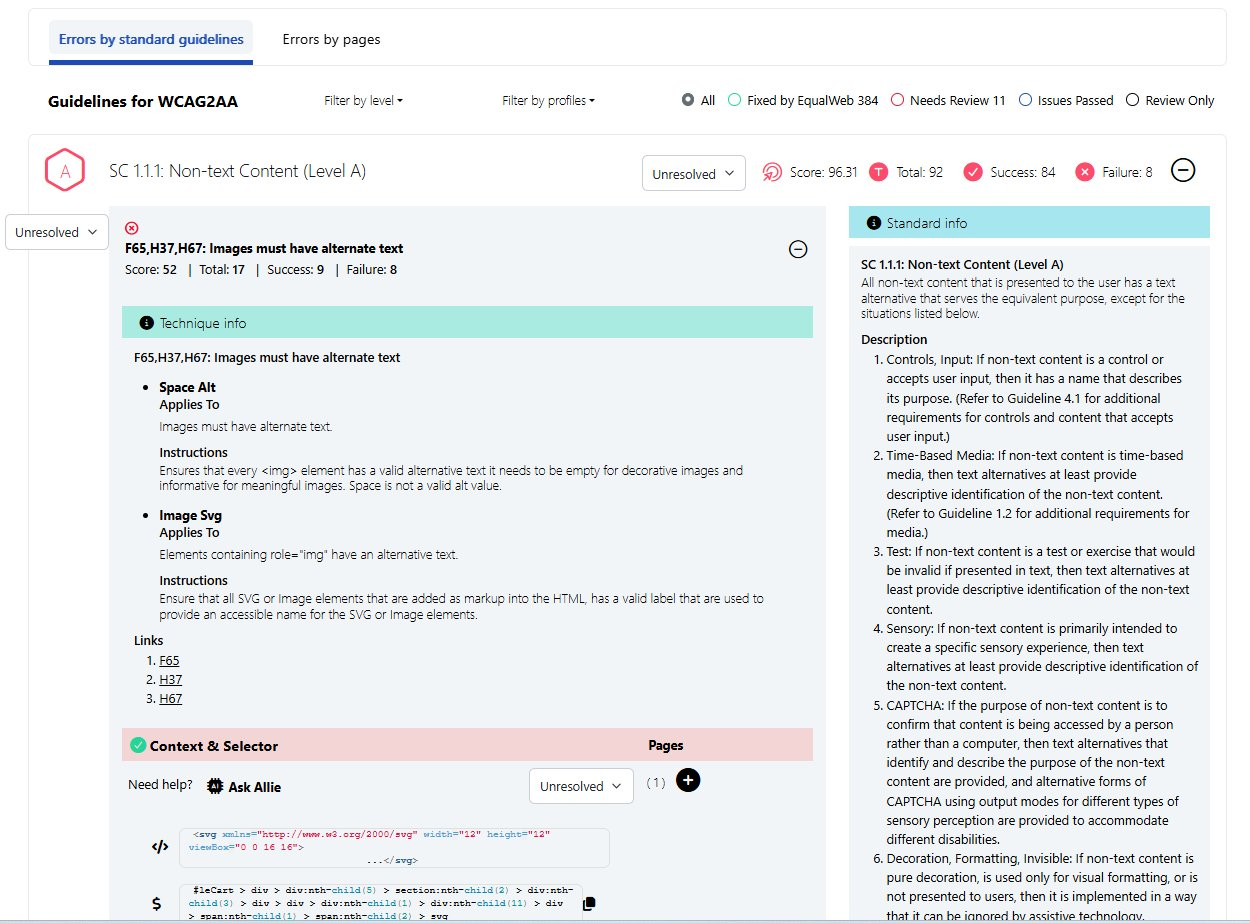
Step 4: expand a finding to reveal its technique information and instructions. All values shown are examples only. - Check the affected page or pages where the issue appears.
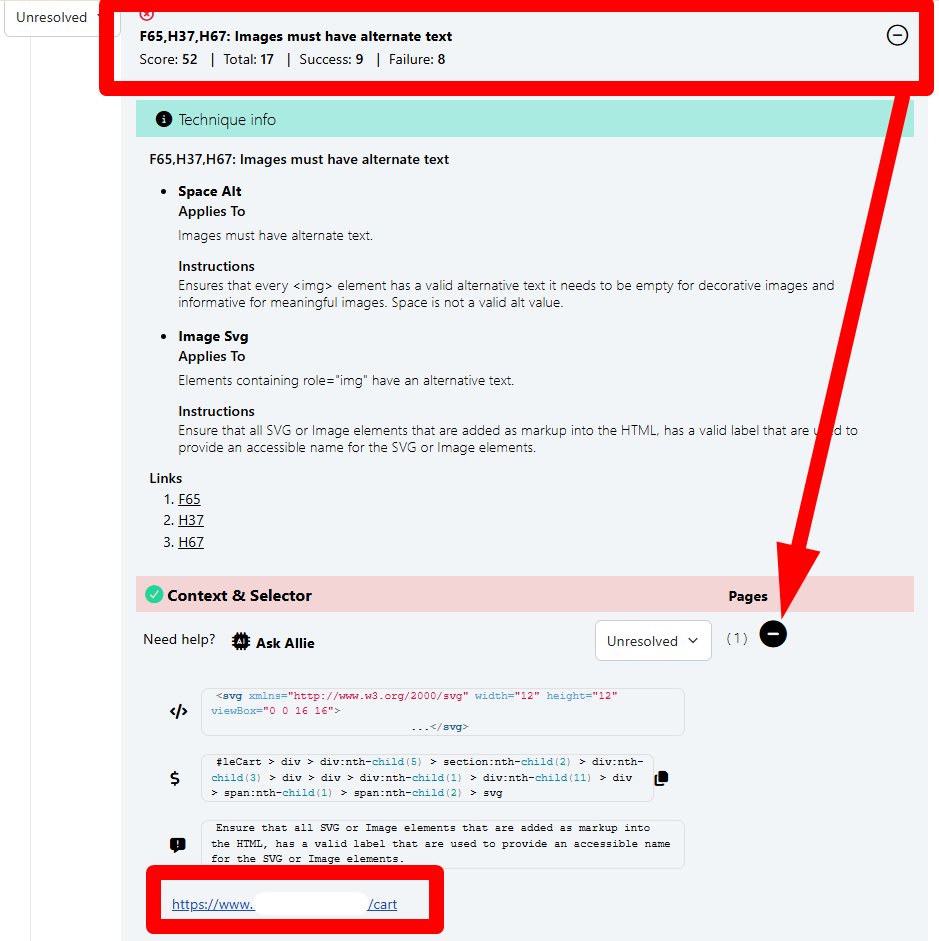
Step 5: check the affected page or pages in the Context and Selector area. Page addresses and code shown are examples only. - Review the information provided for that finding, which may include the criterion or accessibility requirement, the specific problem found, the standard information, the technique or instructions, the context and selector where available, and any recommendation or next step.
- Share the relevant finding details with the person or team responsible for fixing it, such as a developer, designer, or content editor.
- After fixes are made, run or review a new scan to confirm whether the finding was resolved.
5 Understanding severity levels
Each finding in the report is given a severity level. This tells you how significant the impact of that issue is likely to be for users with disabilities.
Likely to block users entirely. For example, an image with no description means a screen reader user receives no information at all. These should be prioritised.
Creates significant difficulty for some users but may not block them completely. Still important to address, particularly on key pages.
Minor issues that have a limited impact. Worth addressing as part of ongoing improvements, but usually not urgent.
Observations or best-practice recommendations that may not constitute a direct failure. Useful context for your team.
6 What a finding includes
Each individual finding in the report typically contains several pieces of information to help you understand and act on it: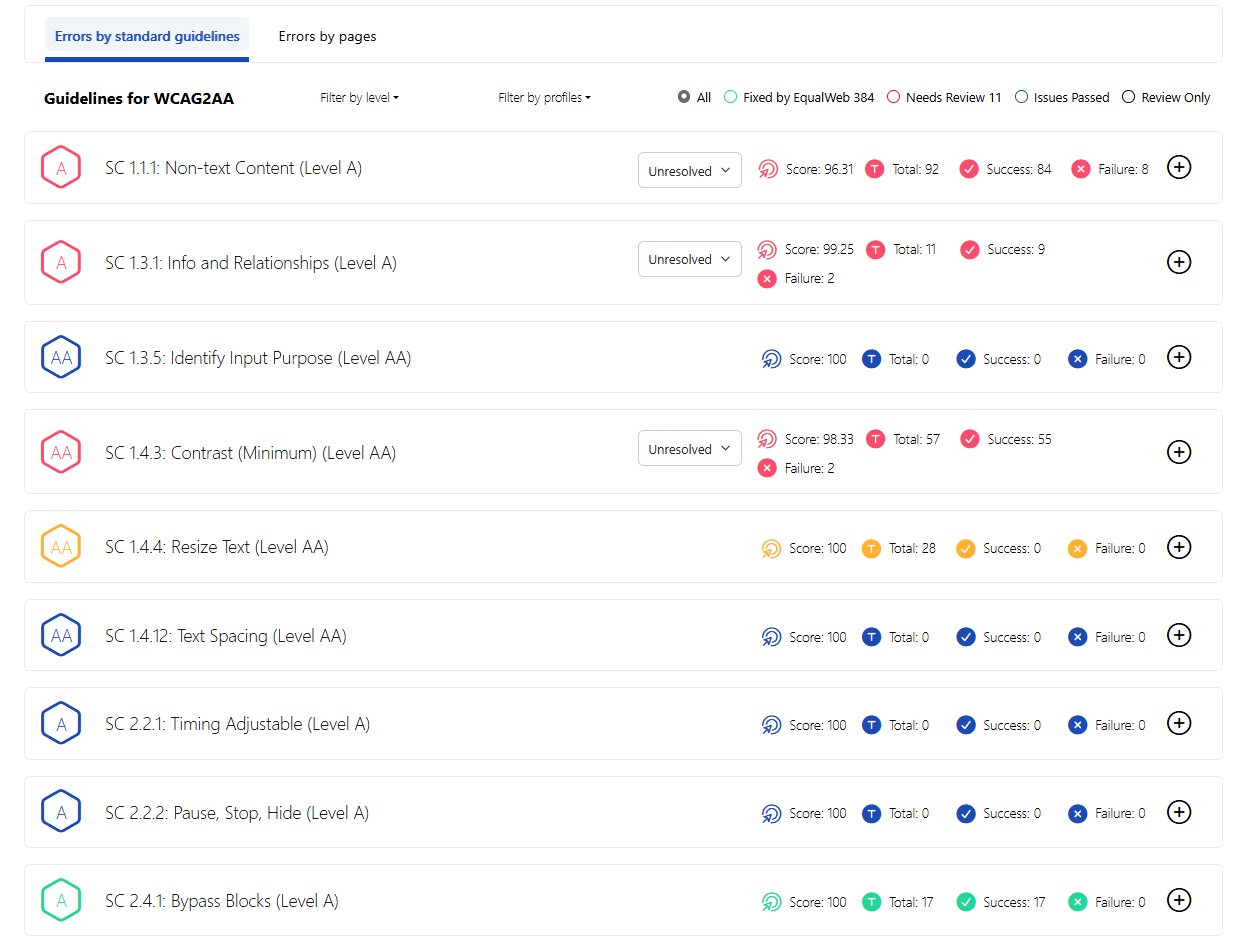
https://www.test.com/example-page.7 How to understand affected pages and URLs
The report may list findings by specific page address (URL). This helps you identify exactly where an issue exists on your website.
You may notice that the same type of issue appears on multiple pages. This is normal and usually means the same element (such as a button, image, or form field) exists on those pages with the same problem.
In some reports, findings are grouped by issue type rather than by page, making it easier to see the full scope of a single problem across your site.
8 Why the same issue appears more than once
It is common to see the same type of finding listed multiple times in the report. This is not a mistake. It means the same underlying problem exists in multiple places on your website.
This often happens because websites are built using shared components or templates. For example:
- A navigation menu that appears on every page
- A footer with the same links across the whole site
- A product card or image gallery used repeatedly
- A contact form or search bar embedded in multiple locations
Because a single component can appear on hundreds of pages, fixing the component itself, rather than each page individually, is usually the most efficient approach.
9 What to focus on first
With multiple findings, it can feel overwhelming to know where to begin. Here is a simple prioritisation approach:
- Start with critical and high severity findings. These have the greatest potential impact on users and should be reviewed first.
- Focus on important user journeys. Look at pages where users take key actions, such as the homepage, product pages, checkout, login, contact forms, or booking flows. Accessibility issues here affect the most people.
- Look for repeated issues from shared components. One fix to a template or reusable element can resolve the same problem across many pages simultaneously.
- Review issues affecting assistive technology users. Pay particular attention to anything that may affect keyboard navigation, screen reader compatibility, or readability for users with low vision.
- Address lower-severity findings over time. These can be scheduled into your regular development or content workflow rather than requiring urgent action.
10 What the report does not necessarily mean
It is important to understand what the report can and cannot tell you:
- A finding does not mean your entire website is inaccessible. Many websites have findings but are still usable for the majority of visitors. The report highlights areas for improvement.
- Automated monitoring cannot detect every accessibility issue. Some types of accessibility problems, such as the quality of written content or the logic of an interactive feature, can only be evaluated through manual testing or user feedback.
- Some findings may need manual review before your team decides on the appropriate action. Not every automated flag reflects an issue that requires a change.
- Fixes may involve different teams. Some issues are handled by developers (code changes), others by designers (layout and colour), and others by content editors (text, labels, or image descriptions).
- Accessibility is an ongoing process. Websites change frequently. New pages are added, content is updated, and new features are built. Regular monitoring helps you stay on top of accessibility over time, rather than treating it as a one-time task.
11 Recommended next steps
After reviewing your report, here is what we recommend:
- Review the highest-priority findings first, particularly any critical or high-severity items.
- Share the report with your relevant team. This may include your web developer, designer, or content manager, depending on the type of findings.
- Identify repeated issues and check whether they come from a shared template, component, or piece of code that can be fixed in one place.
- Prioritise fixes according to severity and user impact, then work through the remaining findings over time.
- Re-scan your website after changes are made to confirm that findings have been resolved and to monitor for any new issues.
- Contact EqualWeb if you need clarification on any finding, want guidance on how to fix a specific issue, or would like support from an accessibility specialist.
12 Frequently asked questions
Do I need to fix everything immediately?
No. The report is designed to help you prioritise. Start with critical and high-severity findings on your most important pages. Lower-severity items can be planned into your regular website maintenance schedule over time.
Why do I see the same issue more than once?
This usually means the same element, such as a navigation menu, image, button, or form, appears on multiple pages with the same problem. Fixing the shared component or template will often resolve it everywhere at once.
Can automated monitoring find all accessibility issues?
No automated tool can detect every accessibility issue. Automated scanning is very effective at identifying many common problems, but some issues, such as confusing page structure, poor written instructions, or complex interactive features, can only be evaluated through manual review or testing with real users.
Who should handle the fixes?
It depends on the type of finding. Code-related issues typically need a developer. Design-related issues (such as colour contrast) may need a designer. Content-related issues (such as missing image descriptions or unclear link text) can often be handled by a content editor. Your EqualWeb report will give you enough context to direct each finding to the right person.
What should I do if I do not understand a finding?
Do not worry. Accessibility terminology can be unfamiliar. You can contact the EqualWeb support team or your assigned accessibility contact for a plain-language explanation of any finding. You can also use the "Ask Allie" feature available in your report for immediate guidance.
What does the score mean?
The score gives you a quick sense of how your scanned pages perform against accessibility standards. A higher score indicates fewer detected issues. Keep in mind that the score reflects only the pages that were scanned. A small sample may not represent your entire website.
What does "WCAG" mean?
WCAG stands for Web Content Accessibility Guidelines. It is an internationally recognised set of guidelines for making websites accessible to people with disabilities. The EqualWeb report may use WCAG as the selected accessibility standard, and will tell you which criteria your site passes or does not pass.
Your EqualWeb Monitor Report is here to help you understand your website's accessibility, not to overwhelm you. Every improvement you make, however small, helps real people access your content more easily. We are here to support you every step of the way.